

Organize chapters and notes
Navigate the project and keep working material beside the draft.
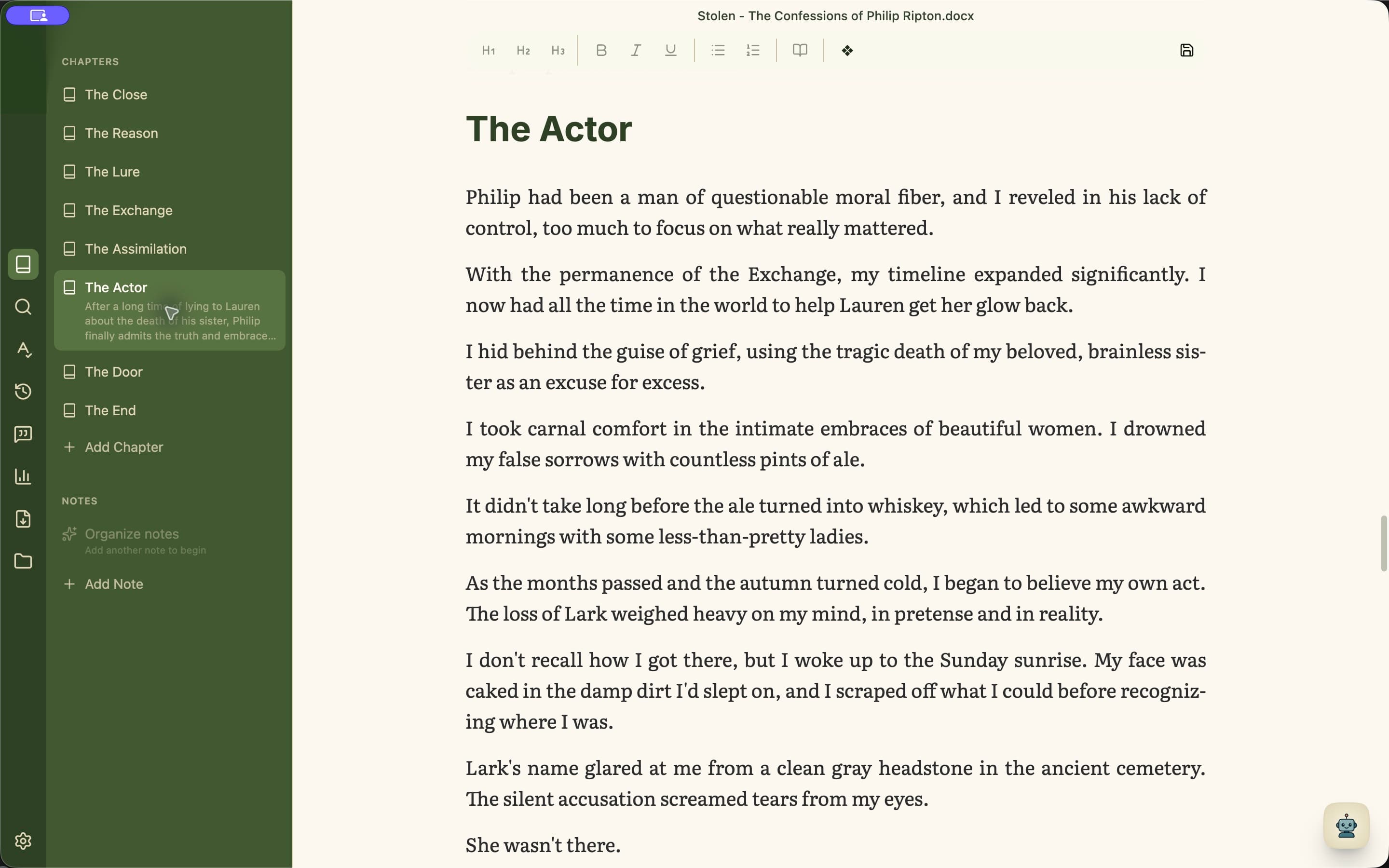
Move through a long draft
Write turns Heading 1 titles into a chapter list and shows lower-level headings beneath each chapter. Select any entry to jump there without scrolling through the entire draft.
- 1Open Write from the left rail.
- 2Select a chapter title or nested heading to move the editor to it.
- 3Choose Add Chapter to create the next structural unit.
- 4Check the signed word-count change beside a chapter to see how it has changed since the last save.
Keep supporting material nearby
Open Plan for notes and their own heading outline. Notes belong to the project but stay outside the manuscript, making them useful for research, scene questions, character details, discarded passages, and revision checklists.