

Export your project
Create a PDF, DOCX, or EPUB copy for reading, editing, or distribution.
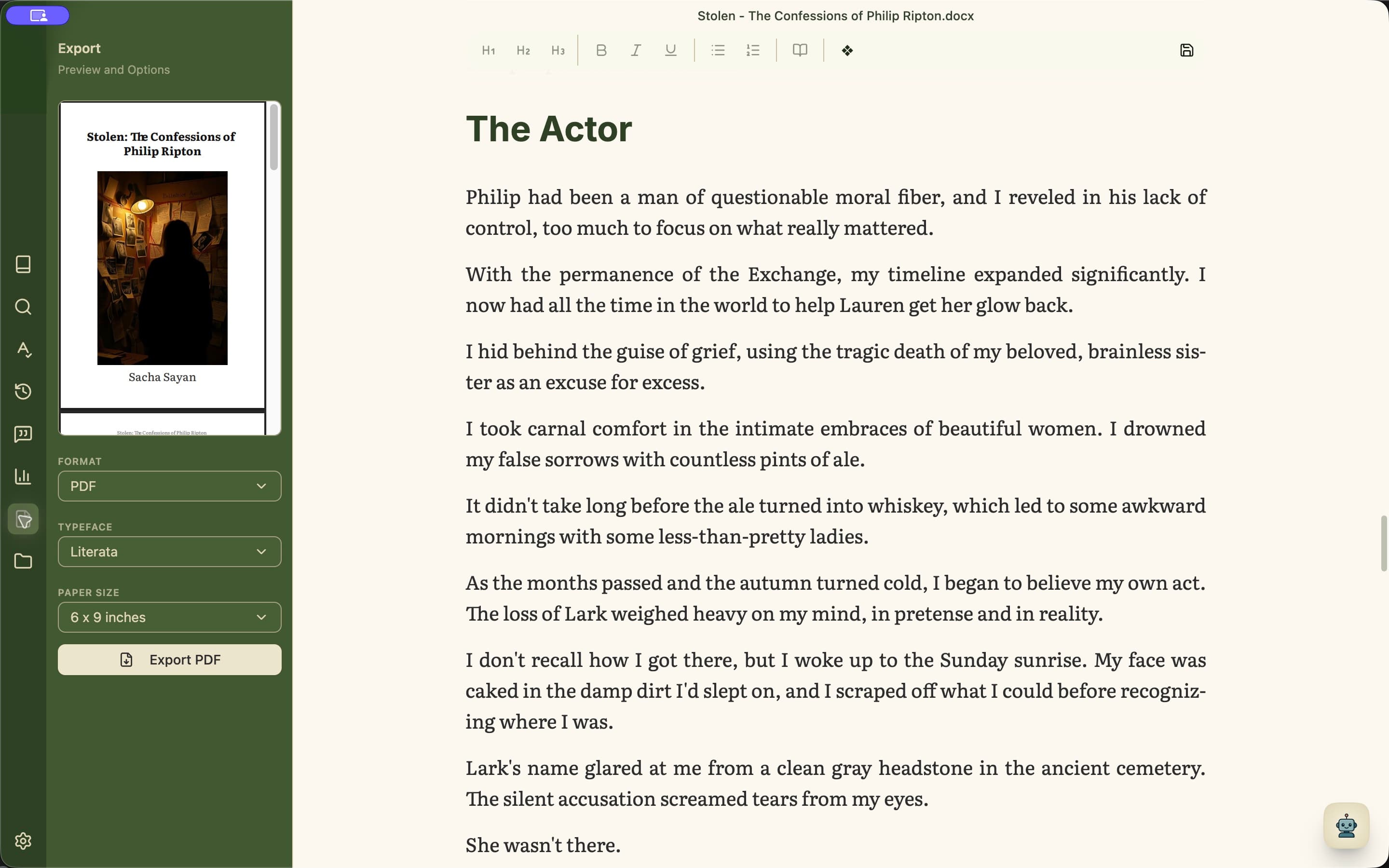
Create an export
- 1Open Publish from the left rail.
- 2Confirm the title, author, summary, cover, and optional book pages in Prepare, then return to Publish.
- 3Choose the intended destination: readers, an editor, a print proof, or digital publication. Minstrel selects the matching PDF, DOCX, or EPUB setup.
- 4Choose a font pairing, then adjust the page size, reading density, or line spacing offered for your destination. Margins and page furniture follow the selected page size automatically.
- 5Inspect the PDF, DOCX, or EPUB preview in the main workspace. Use the page grid and zoom to examine paged output; let the output check finish before exporting.
- 6Review any findings, then select the export button and choose where to save the new file.
Choose the format by destination
PDF, DOCX, and EPUB exports are included in Lite, Standard, Plus, and Pro. Use PDF when layout should stay fixed, DOCX when someone needs an editable word-processing file, and EPUB for reflowable reading on compatible devices and apps.
DOCX output includes running headers and automatic page numbers, with chapters beginning on new pages. Its appearance can vary between Word, Google Docs, and other readers, so inspect the file where it will be used.